Build auto-graded fill-in-the-blank questions with fixed answers like names, dates, and years
Fill-in-the-blank questions are built using the General Question type. The learner sees a prompt with a blank and types their answer into a single-line input. Answers are auto-graded against a Python expression that computes the correct value.
You can use this for fixed-answer questions (names, years, dates, vocabulary) or dynamic questions that cycle through a pool of items (e.g., different countries, different historical events).
Use this approach when the question is always the same — one prompt, one answer. No variables are needed.
When creating a new question in your topic or course, select General Question (with variables and expressions) from the question type options.
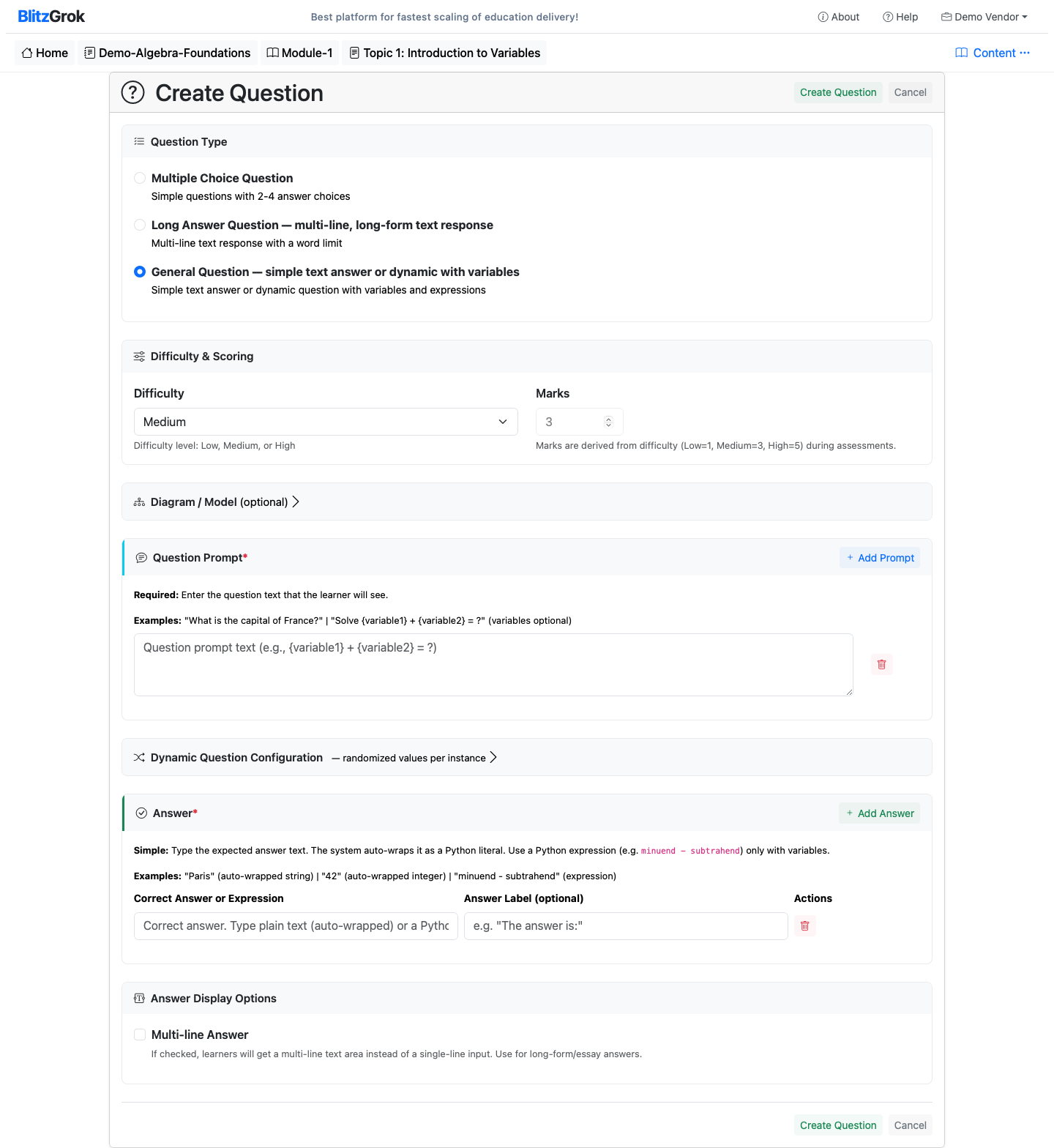
For a fixed question with a single fixed answer, you do not need any variables. Leave the Variables section empty.
Write your question as plain text. Use “...” or “______” to indicate the blank. The learner will see a text input field below your prompt.
In the Answers section, enter the correct answer as a Python string literal wrapped in quotes. The system evaluates this expression and compares it against the learner's input.
The learner types Paris → the system checks if it matches 'Paris' (case-sensitive).
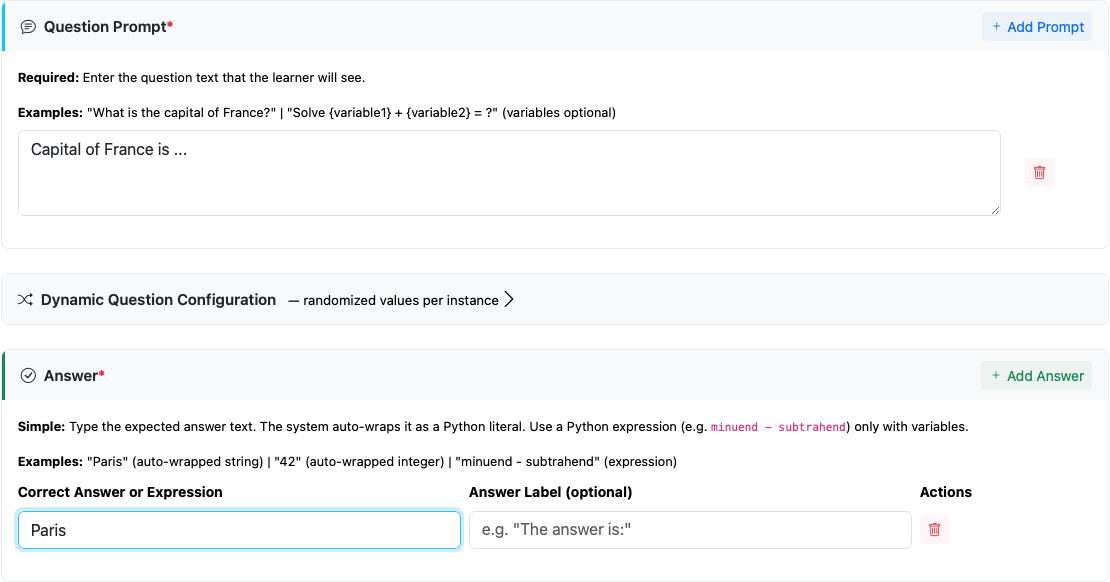
Use this approach when you want the question to randomly pick from a pool of items each time — giving the learner limitless practice variations.
choice()
Create a variable that randomly picks from a list of items using the choice() function.
Variable Name: country
Data Type: String
Generator Expression:
Use {country} in your prompt where the variable value should appear.
The learner will see: "What is the capital of Brazil?" (or whichever country was picked).
Use a Python dictionary to map each possible variable value to its corresponding answer.
The expression evaluates in the variable context, so country is already defined.
When country = 'Japan' is generated, the answer evaluates to 'Tokyo'.
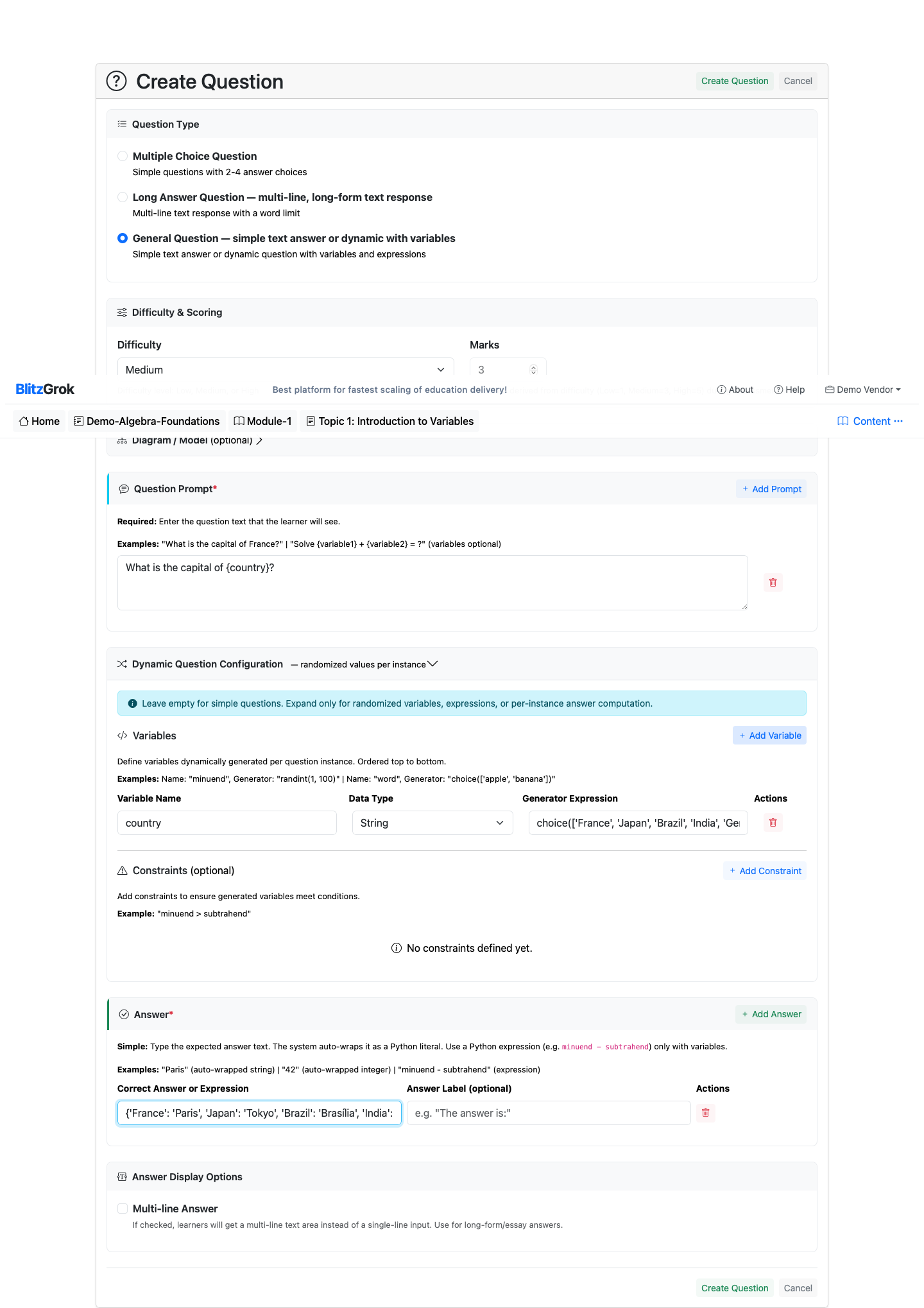
Single question, always the same. No variables needed.
Prompt: Capital of France is ...
Answer expression: 'Paris'
Ask for a year. Answer is a string literal.
Prompt: The French Revolution began in the year ...
Answer expression: '1789'
Cycles through different countries each attempt.
Variables:
country = choice(['France', 'Japan', 'Brazil', 'India', 'Germany'])
Prompt: What is the capital of {country}?
Answer:
{'France': 'Paris', 'Japan': 'Tokyo', 'Brazil': 'Brasília', 'India': 'New Delhi', 'Germany': 'Berlin'}[country]
Ask about different events each attempt.
Variables:
event = choice(['French Revolution', 'American Civil War', 'World War I', 'Moon Landing'])
Prompt: The {event} occurred in the year ...
Answer:
{'French Revolution': '1789', 'American Civil War': '1861', 'World War I': '1914', 'Moon Landing': '1969'}[event]
Test vocabulary knowledge with a cycling word bank.
Variables:
word = choice(['Photosynthesis', 'Mitosis', 'Osmosis', 'Evaporation'])
Prompt: Define the term: {word}
Answer:
{'Photosynthesis': 'process by which plants convert light to energy', 'Mitosis': 'cell division producing two identical cells', 'Osmosis': 'movement of water through a membrane', 'Evaporation': 'liquid turning into vapor'}[word]
We're here to help