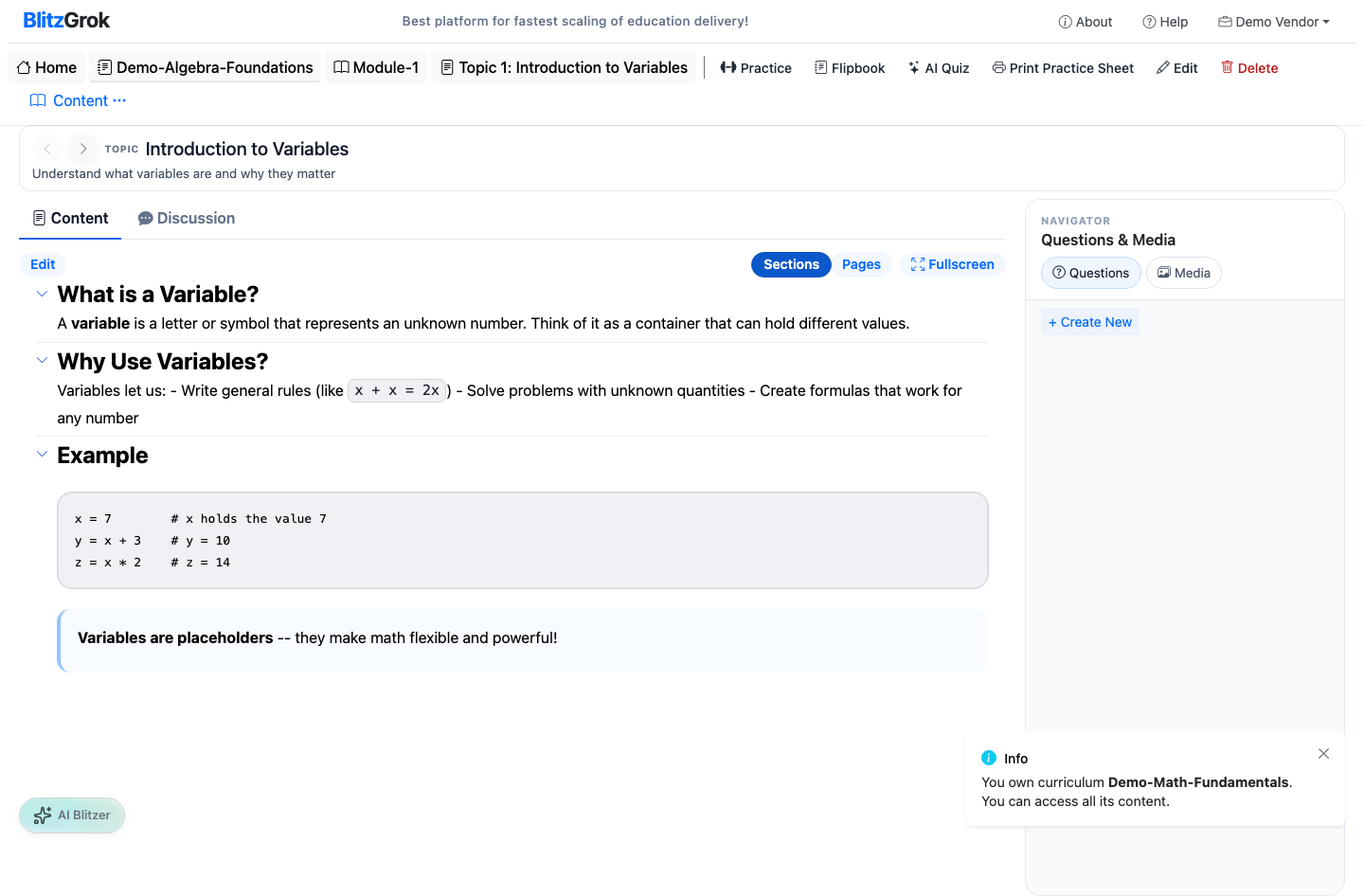
Course Workflow

Create a course, build its structure, set purchase options, and publish

How courses work

A course is the unit students practice through. Inside a course you'll build modules, then topics, then add questions. Once you've set pricing (if needed), you can publish the course.

Choose Your Course Structure

Every course organizes content into topics with practice questions. Pick the level of grouping that fits your subject.

Option A

Modules & Topics

Course → Module → Topic → Question

Group topics into modules for a structured, sequential learning path.

  • Best for: Multi-unit subjects, scaffolded curricula
  • Example: Algebra with modules like "Equations" and "Graphing"
  • Learner experience: Progress through modules in order
Option B

Topics Only

Course → Topic → Question

Add topics directly to a course without the module layer — simpler and faster.

  • Best for: Shorter courses, focused skill practice
  • Example: Vocabulary Building with topics directly under the course
  • Learner experience: Jump straight into topics
Tip: Start with Topics Only for a quick MVP. You can add modules later if the course grows.

Step-by-Step Guide

1

Create the Course

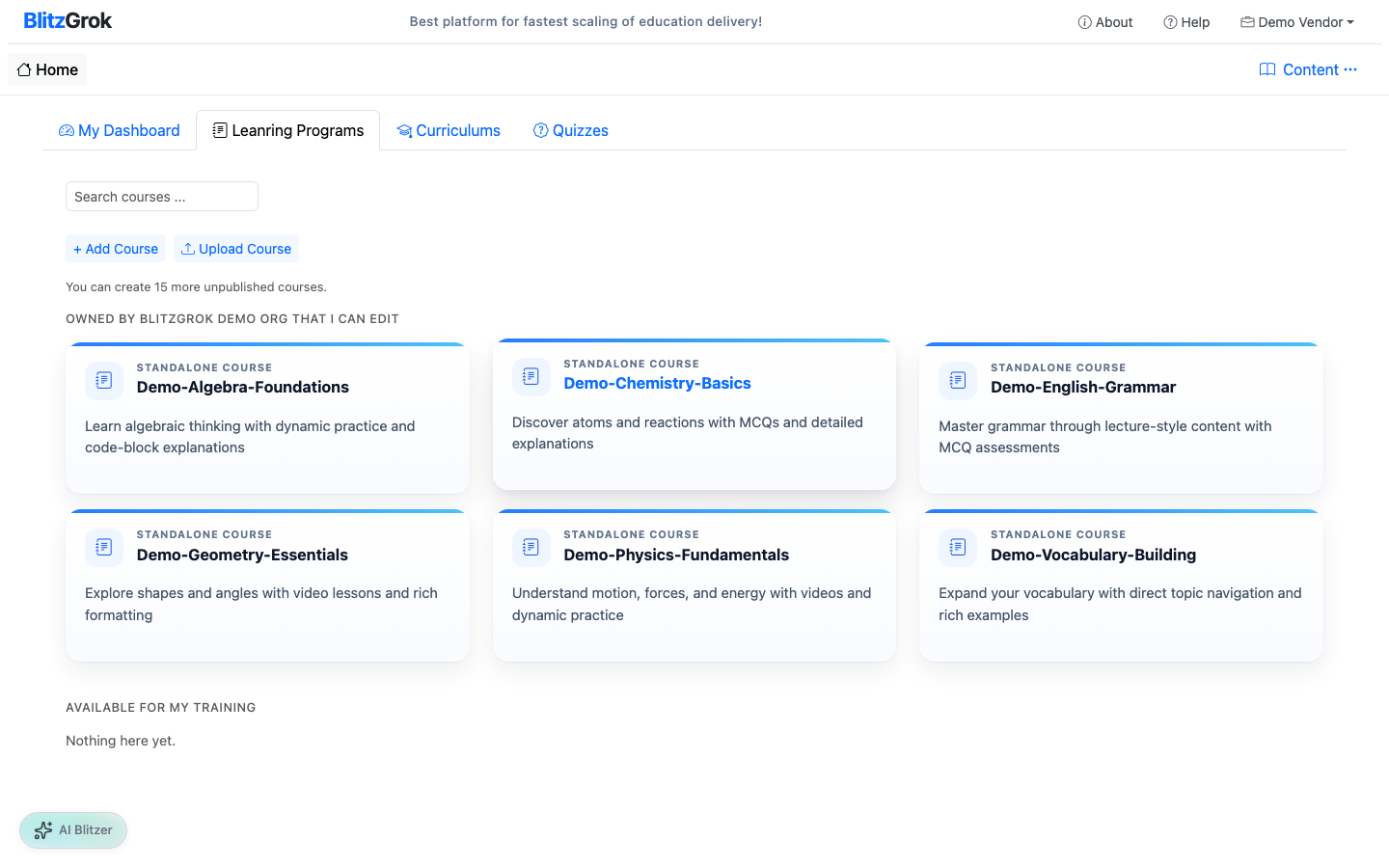
From your Educator dashboard, start a new course.

  • Click "Add Course" from the courses page
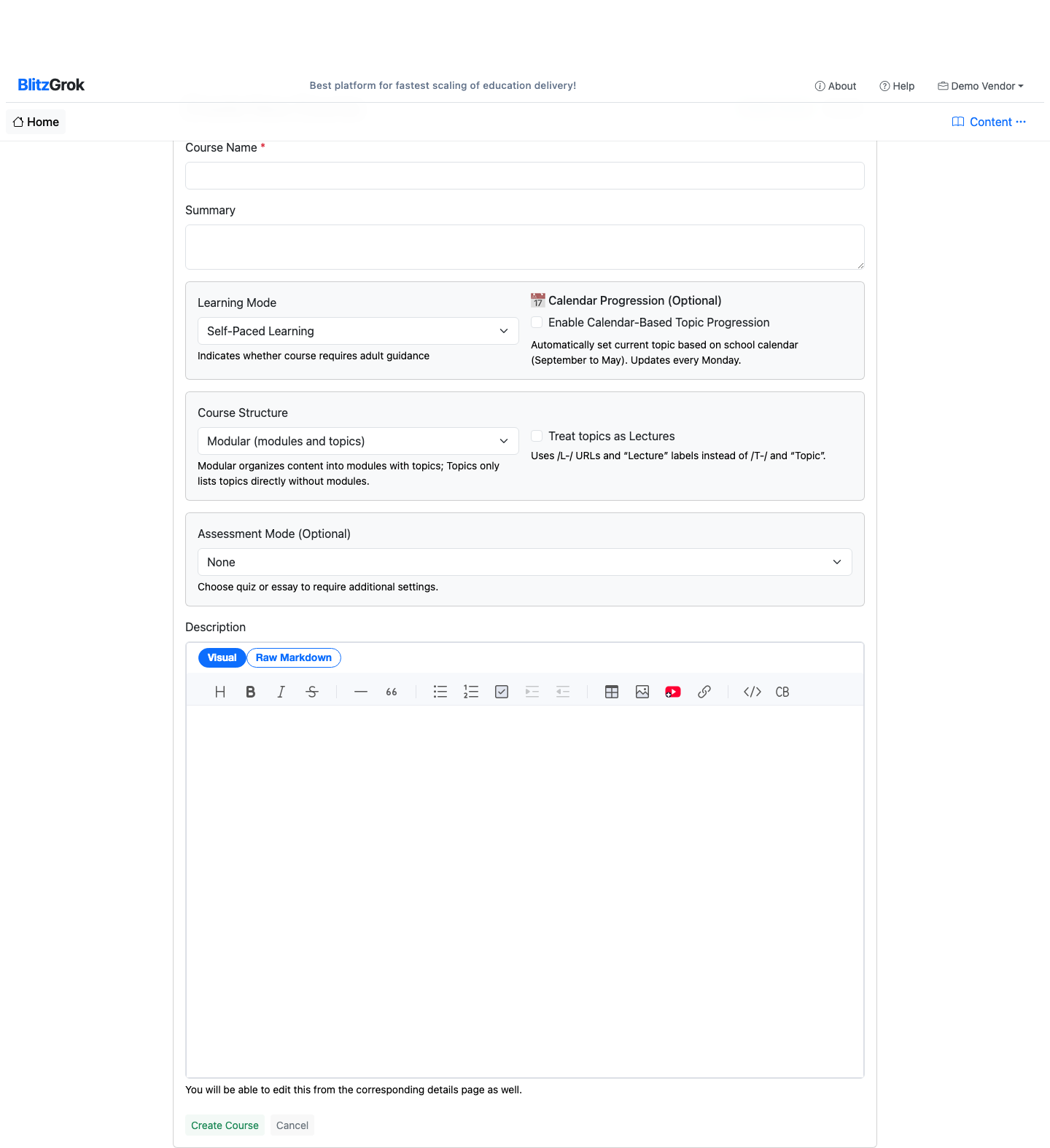
  • Fill out the course name (required) and summary/description (recommended)
  • Click Create Course
Educator dashboard: add course
1. Start: add a course
Course create form
2. Course create form
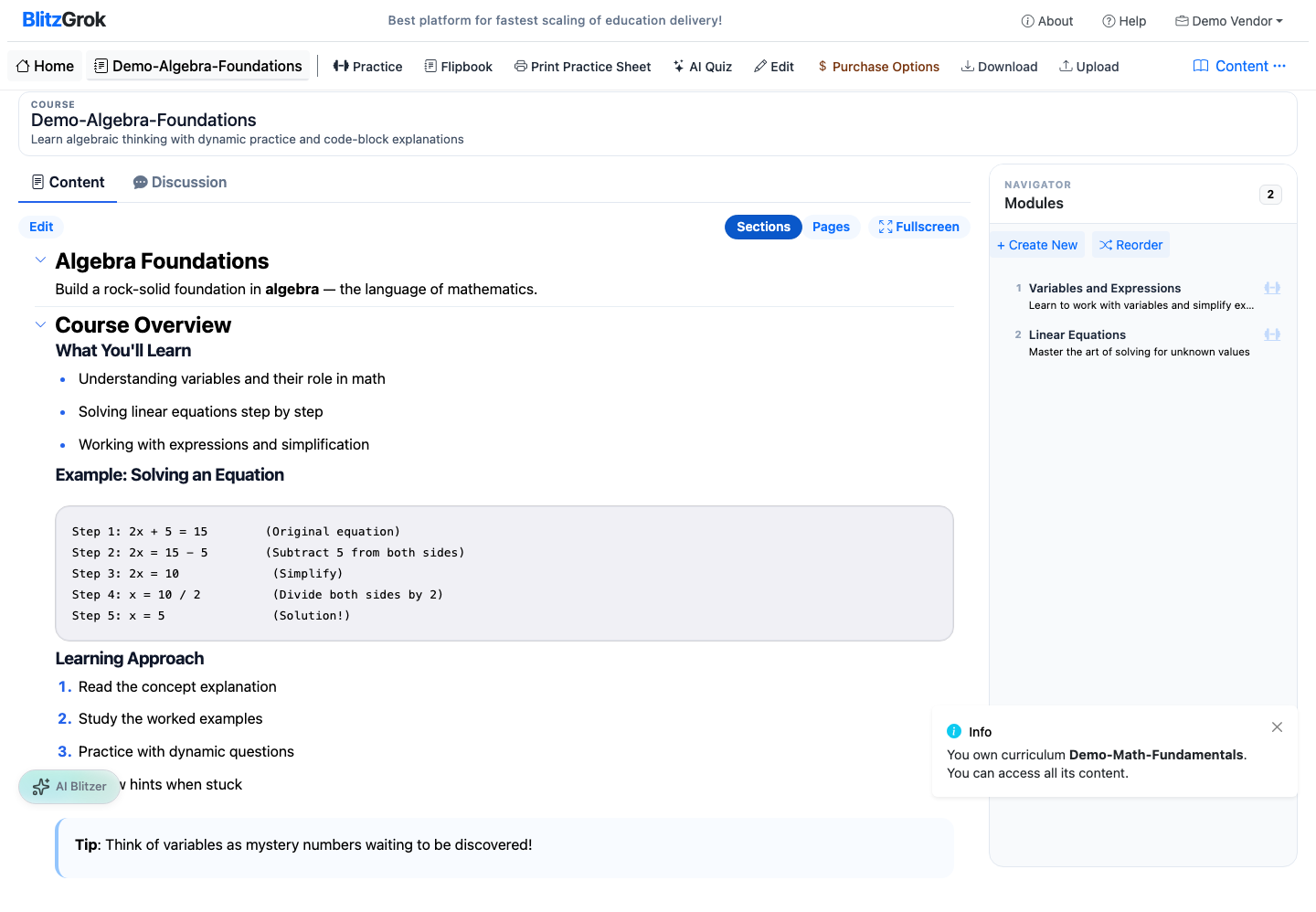
Course created
3. Course created
2

Add Modules

Modules break your course into focused learning steps.
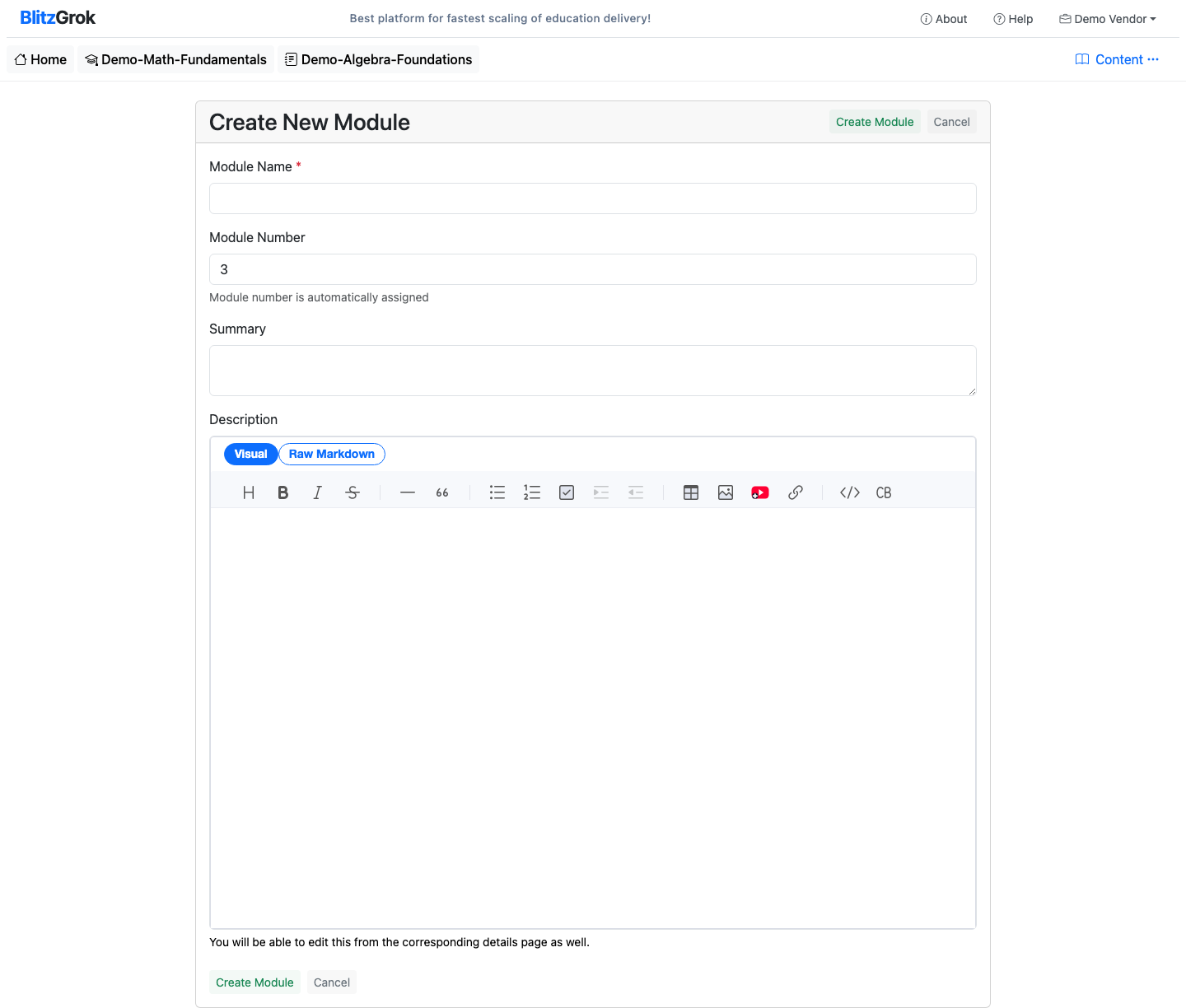
  • Open your course
  • Use "Add Module"
  • Keep modules small and ordered (students move sequentially)
Module create form
4. Module create form
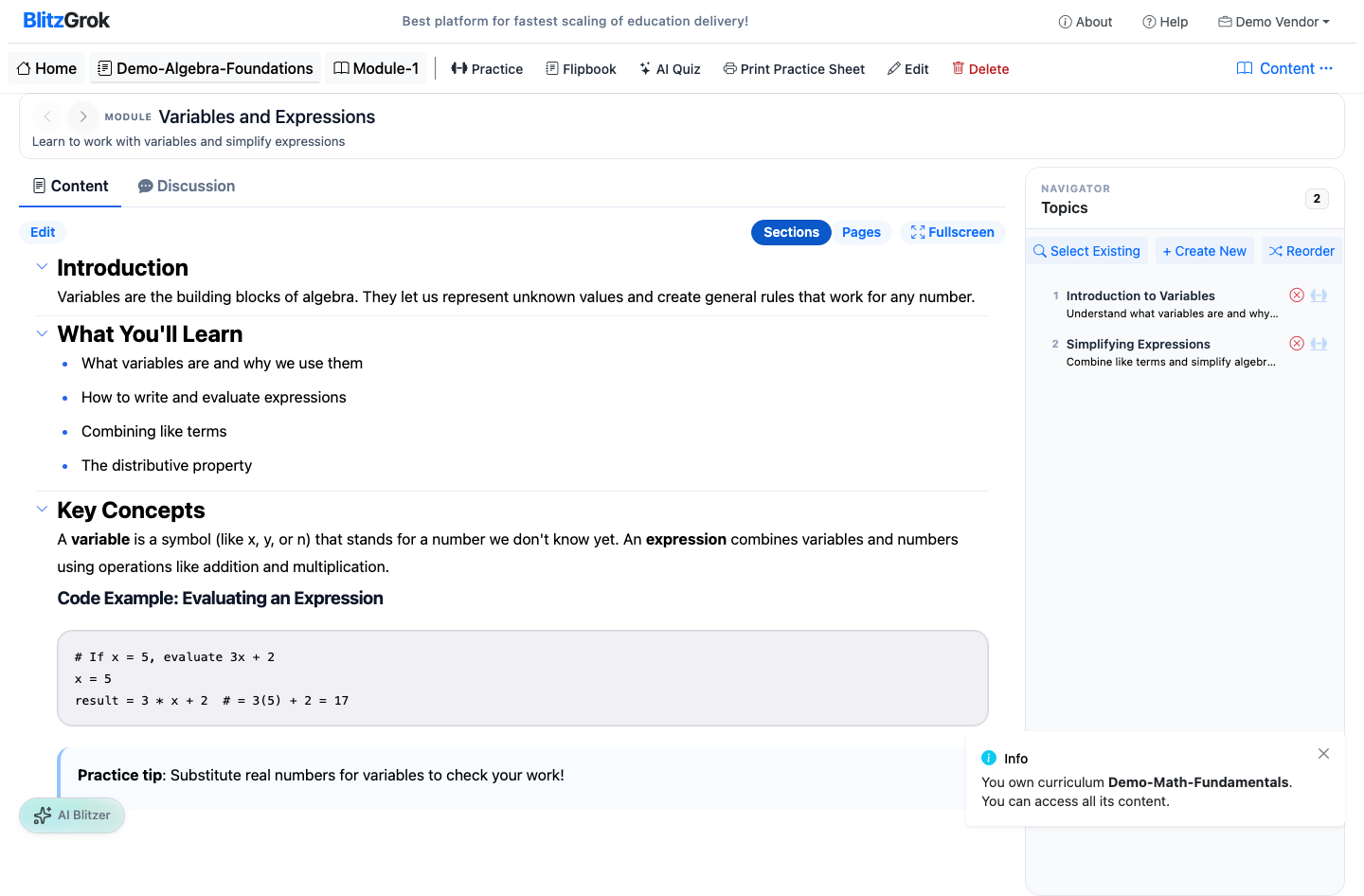
Module created
5. Module created
3

Add Topics (Inside Modules)

Topics are the practice units — each topic should cover one concept.
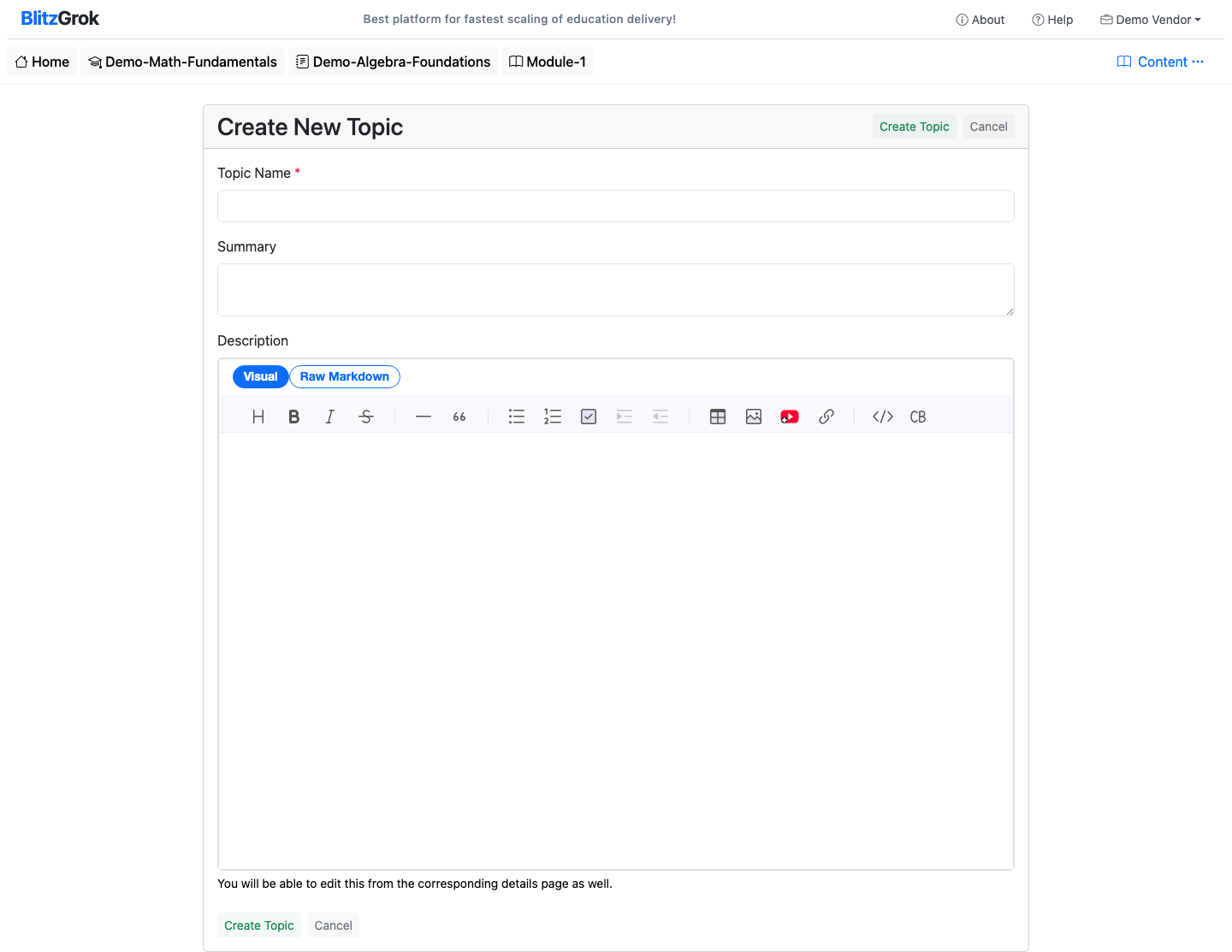
  • Open a module
  • Use "Add Topic"
  • Keep topics narrow; prefer more small topics over fewer broad ones
Topic create form
6. Topic create form
Topic created
7. Topic created
Add questions inside topics in the Question Creation guide.
4

Set Purchase Options, Then Publish

When your course is ready, configure pricing (if needed) and then publish. Publishing is the final step — once published, students can discover and enroll.
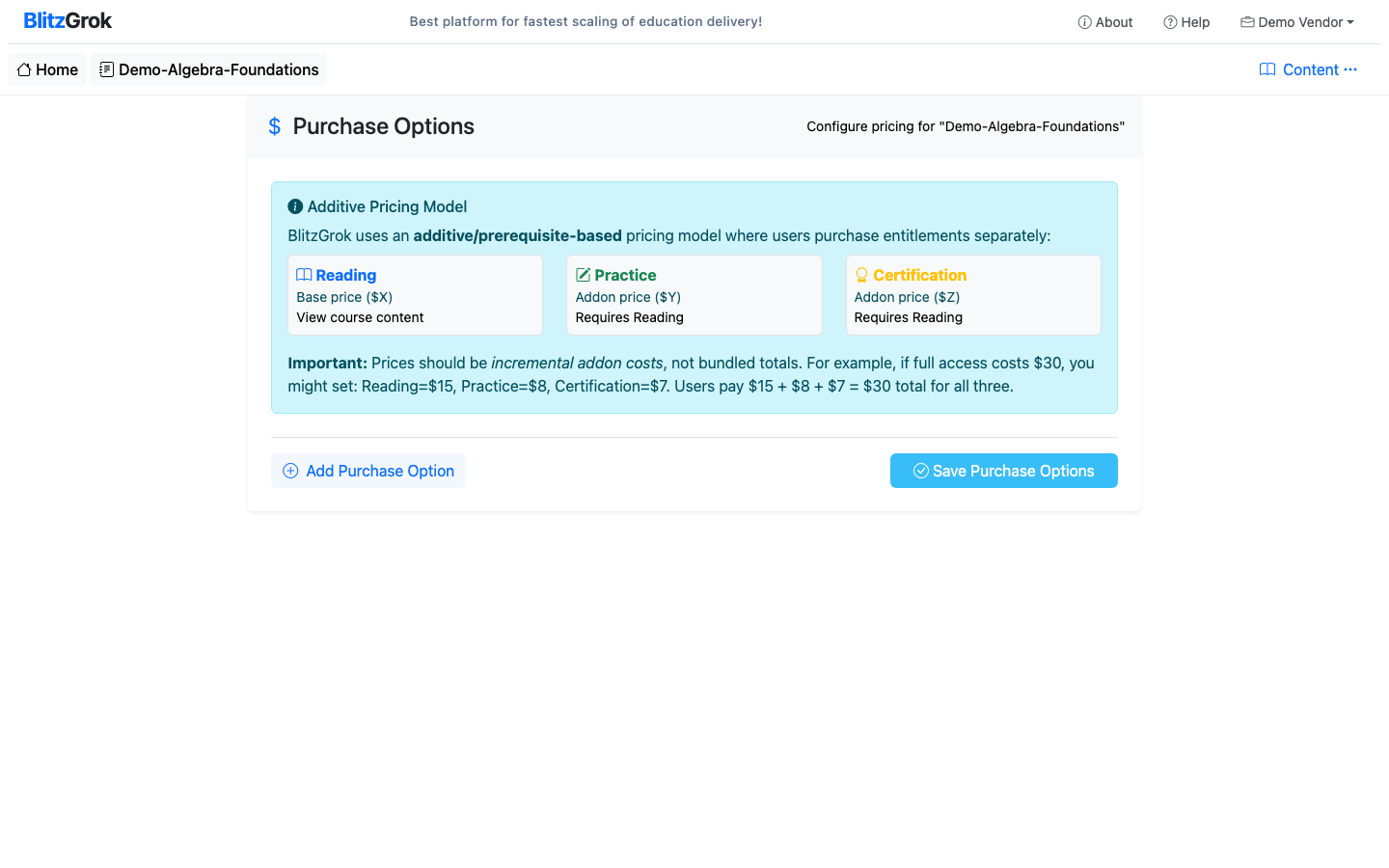
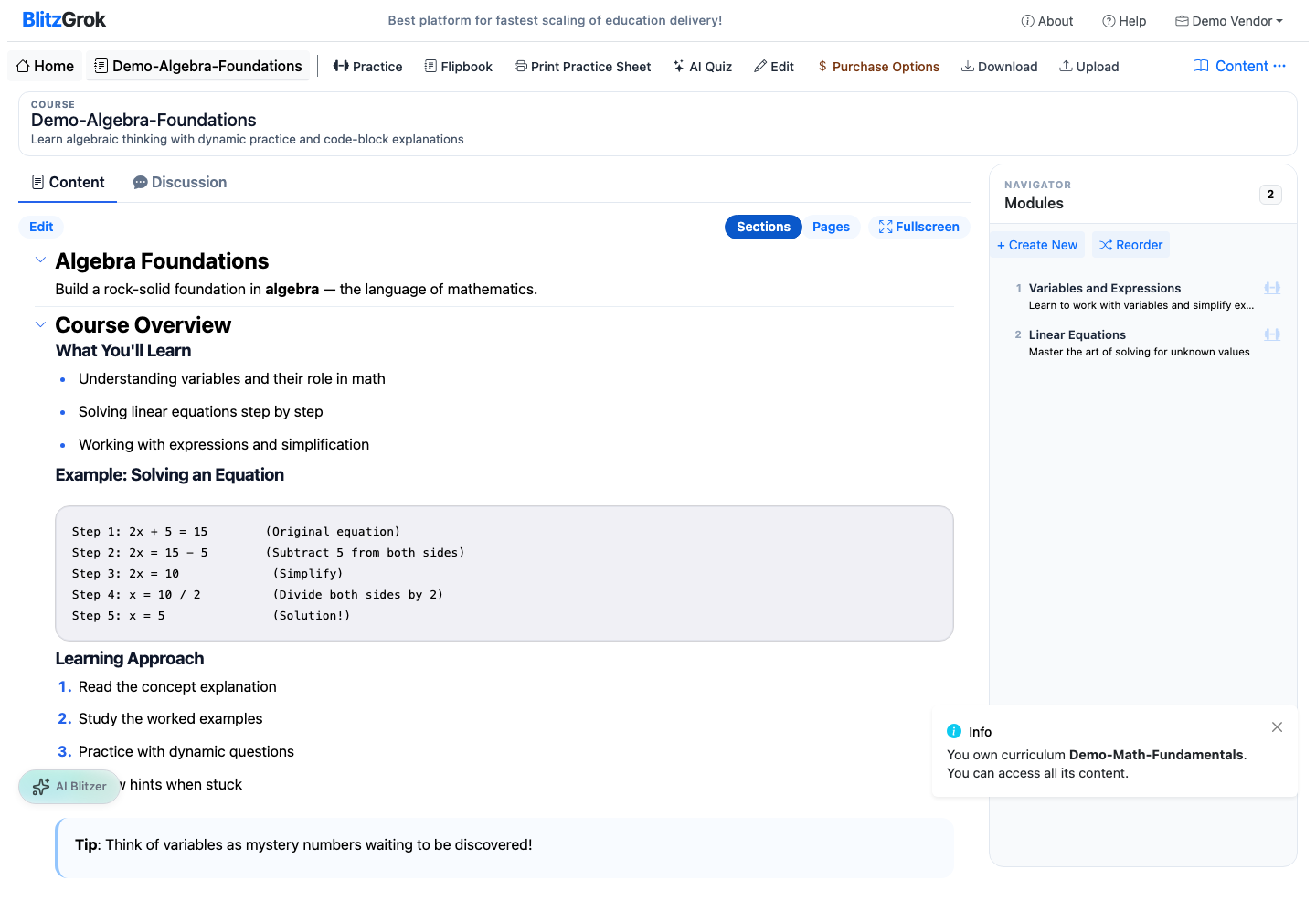
  • Open the course page
  • Click Purchase Options to set pricing, then Save Purchase Options
  • Click Publish to make the course available
Purchase options page
8. Purchase options
Publish course button
9. Publish the course
Note: After publishing, editing options may be limited depending on purchases and platform rules.
Questions about building courses?

We're here to help

Contact Us